
Whether you’re just starting out or already have some practical experience, working on motherboards means you must have both technical skill and sharp instincts. A motherboard technician deals with one of the most crucial components inside any computer. It connects everything. The CPU, RAM, storage, and power. When it fails, the whole system ultimately goes down.
This guide covers the practical tips every motherboard technician needs to diagnose, repair, and maintain PC motherboards with confidence.
Know What You’re Working With!
The motherboard also called the mainboard or logic board is the central hub of a computer. It hosts the CPU socket, RAM slots, PCIe slots, SATA connectors, and the chipset. Every component on a PC communicates through it. As a computer motherboard repair technician, you must know these key parts:
- CPU socket holds the processor and links it to the rest of the system
- RAM slots house the system memory
- PCIe slots connect graphics cards and expansion cards
- Power connectors, 24-pin ATX and 8-pin CPU connectors supply power
- SATA connectors link storage drives like SSDs and HDDs
- Chipset manages data flow between components
Knowing where each part sits helps you dig out the problems faster.
1. Visual Inspection First
This is your first step while fixing every single PC/laptop/MacBook or even gaming PC issue. Look at the board under bright lighting. Use a magnifying glass if needed. You’re looking for:
- Burnt or scorched spots
- Swollen or leaking capacitors
- Cracked PCB traces
- Damaged ports or bent pins
- Dust buildup or corrosion
Capacitor swells alone causes around 14% of all power delivery failures. Swollen capacitors are easy to spot once you know what to look for. They’ll have a domed or bulging top instead of a flat one. Don’t skip this step. Many motherboard repair technicians waste hours on advanced diagnostics only to find the issue was visible from the start.
2. Use the Right Motherboard Repair Kit
A motherboard repair technician is only as good as their toolkit. Here’s what you need for a quick logicboard check:
- Digital multimeter for checking voltage, resistance, and continuity
- Soldering iron for replacing components and fixing broken traces
- Desoldering braid or vacuum pump to remove old solder cleanly
- Anti-static wrist strap protects components from electrostatic discharge (ESD)
- Magnifying glass or microscope for inspecting small SMD components
- Thermal paste is necessary when reinstalling CPU coolers
- Flux improves solder flow when working on fine connections
Never skip the anti-static wrist strap. Static electricity is invisible but deadly to sensitive motherboard components. Touch a grounded metal surface before handling any board if a strap isn’t available.
3. Always Check Power Before Anything Else
Power problems are behind a huge number of motherboard failures. Before assuming the board is dead, verify the power supply. Make sure the 24-pin ATX connector and 8-pin CPU power connector are firmly seated. Loose connections are the reason behind 41% of startup failures, according to 2025 repair lab data report.
Use a multimeter to test the voltage rails. The voltage must be +12V, +5V, and +3.3V. Readings should stay within ±5% of ATX specs. Look at connector pins. Burnt or bent contacts need immediate replacement.
Next, run the power supply under load for a few minutes. Some units show voltage drops only under thermal stress. Never assume the PSU is fine. Swap it with a good unit before condemning the board.
4. Expert BIOS & CMOS Troubleshooting
A lot of boot failures occur when corrupted or misconfigured firmware inside PCs create a mess. Mant technicians new to motherboard repair fall in this trap and customers end up changing shops for repairs!
Reset the BIOS first when you came to know about any startup issues. Studies from PassMark show that around 37% of system startup problems are fixed simply by clearing the CMOS.
How to Reset BIOS & CMOS?
- Remove the CMOS battery for about 20 seconds
- Or use the dedicated jumper on the board to clear memory
- Then reseat the battery and power on
This step is fast, free, and fixes a surprisingly large number of cases. Make it part of your standard motherboard troubleshooting checklist.
5. Read POST Codes and Diagnostic LEDs
Modern motherboards give you clues. You just have to read them. POST (Power-On Self-Test) codes are displayed on the onboard LED readout or communicated through beep codes. These codes point directly to which component or process failed during startup.
- Status LEDs labeled CPU, DRAM, VGA, and BOOT near the 24-pin connector
- POST code displays showing two-digit hexadecimal codes
- Beep codes on older boards using a speaker
Always check the specific motherboard manual for the manufacturer’s code definitions. A red DRAM LED, for example, tells you to start with memory and not the CPU.
6. Capacitor Replacement
Replacing a bad capacitor is one of the most common chip-level motherboard repair tasks. Done right, it can bring a board back to life at almost no cost. Match the specs exactly. Capacitance (µF) and voltage rating must match or exceed the original.
Mind the polarity, tnegative stripe on the capacitor must align with the marking on the board. Use a soldering iron with a fine tip at the right temperature. Apply flux before soldering for clean, solid joints. Avoid cold solder joints. They look dull and cause intermittent faults.
Electrolytic capacitors (Elco) degrade faster than tantalum types. If the board uses Elco caps in the 3V or 5V circuits and shows unstable output, those are your first suspects.
7. How to Handle SMD Components?
Surface Mount Device (SMD) components are tiny. They require precision tools and steady hands. Use flux generousl. It helps solder flow cleanly.
- A hot air rework station is ideal for removing and reflowing SMD chips
- Work slowly. Rushing causes lifted pads, which are much harder to fix
- Always use a board view or schematic to confirm component location before replacement
Professional laptop motherboard repair technicians are the only right option when you are looking for chip-level repair. It takes practice, but it’s the skill that separates basic technicians from expert repair specialists.
8. Diagnose Overheating Issues Properly
Overheating is a top cause of motherboard failure and it’s often overlooked. People usually complain that the system boots but randowmly shuts down after a few minutes. Or the fan runs at full speed constantly. Sometimes, the CPU or GPU throttles under load.
How to Check if Your PC is Overheating?
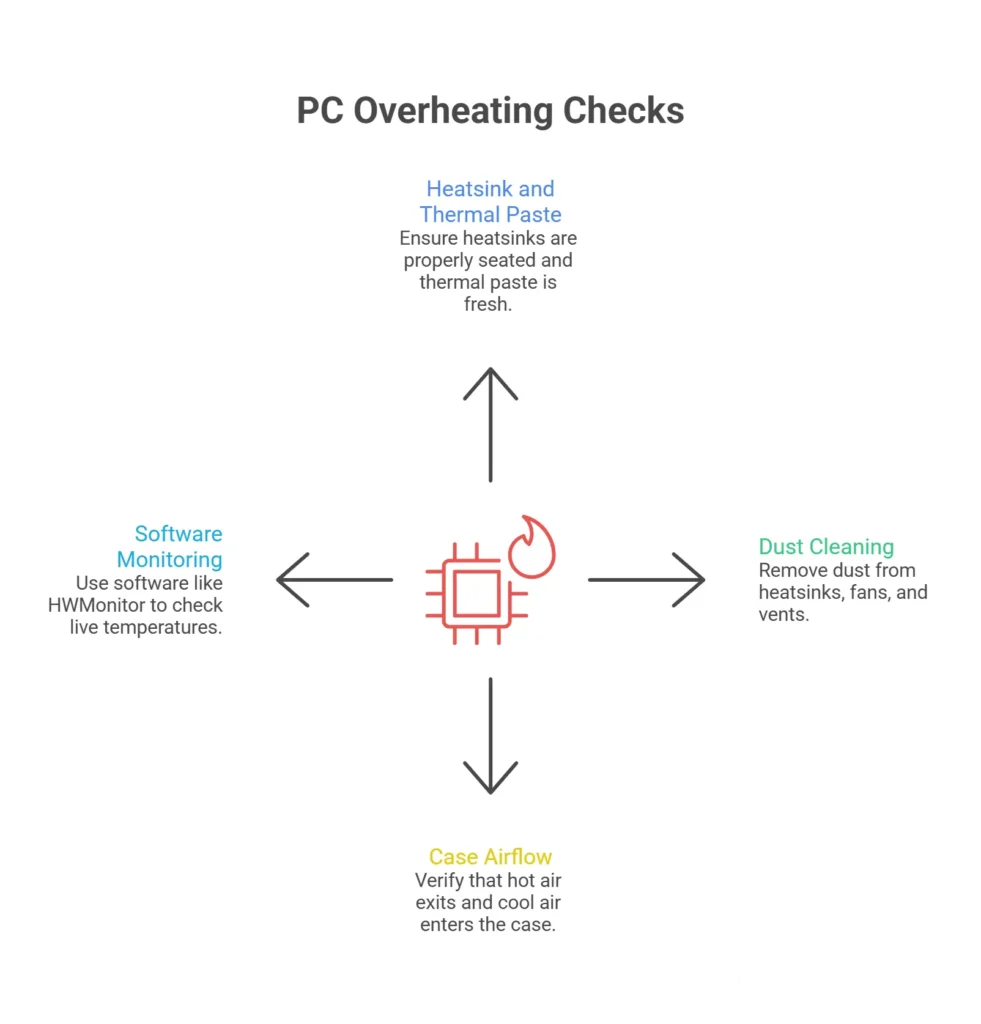
- Make sure heatsinks are seated properly and thermal paste is fresh
- Clean dust from heatsinks, fans, and vents
- Verify case airflow. Hot air must exit, cool air must enter
- Use software like HWMonitor to check live temperatures
Reapplying thermal paste during any CPU-adjacent repair is good practice. Old, dried paste is a silent PC performance killer.
When to Replace Motherboard Instead of Repair?
Not every board is worth fixing. A skilled motherboard repair expert knows when to walk away. Consider replacement when the PCB (printed circuit board) is physically cracked. Or multiple major chips are damaged or missing. Do not choose repair no matter how much the technicians insist if the CPU socket has bent or broken pins beyond recovery.
If the repair costs exceed the board’s actual price, replacement is the best possible solution. Being honest with clients about this saves everyone time and money. It also builds trust, which is the foundation of any good PC repair technician career.
Motherboard handling matters even when you’re not actively working on it. Follow these rules:
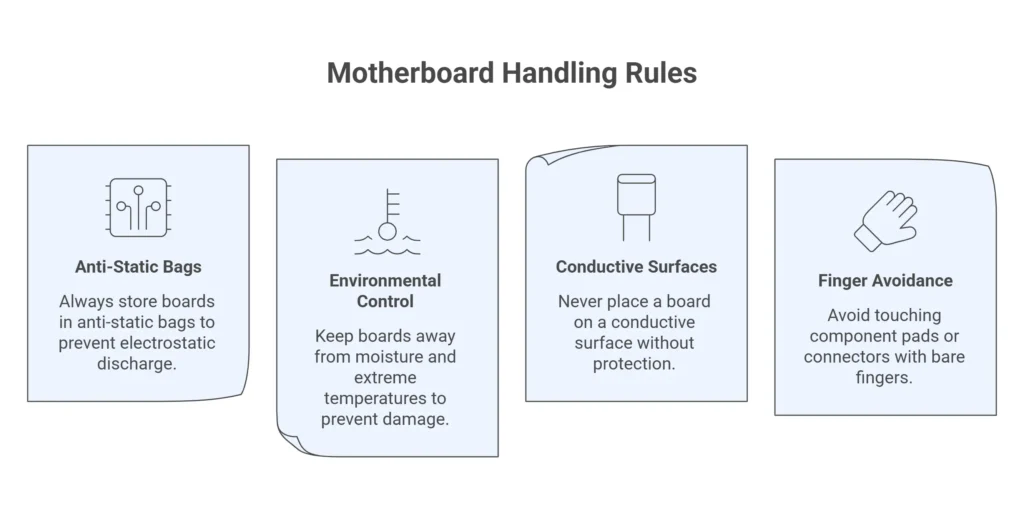
- Always store boards in anti-static bags
- Keep them away from moisture and extreme temperatures
- Never place a board on a conductive surface without protection
- Avoid touching component pads or connectors with bare fingers. Proper storage prevents damage before a repair even begins.
Final Thoughts
Becoming a skilled motherboard technician takes time, patience, and practical experience with lots of practice. But the basics stay consistent. Inspect first, check power, use your tools correctly, and read the clues the logic board gives you.
Master these habits early and you’ll build a strong foundation for tackling even the most complex motherboard repair and troubleshooting challenges. Every board you fix adds to your experience. Stay curious, keep learning, and your skills will grow fast.