
Your HP printer was working perfectly, and now every page comes out faded, streaky, or completely blank. If you’re seeing banded colors, missing lines, or washed-out text, it’s always a clogged HP printhead.
This blog covers how to clean an HP printhead the right way. Start with HP’s own built-in cleaning tools. The best manual methods for stubborn clogs, and when you should visit your nearest printer repair shop to fix HP clogged print heads.
Why HP Printheads Get Clogged?
HP inkjet printheads have microscopic nozzles that spray liquid ink onto the page. When the printer sits unused for weeks, or the printing frequency drops off, that ink starts to dry inside those nozzles and hardens. And you complain of faded areas, color banding, streaks, or whole colors missing from your prints.
Some HP printers have the printhead built directly into the ink cartridge. On those models, replacing the cartridge often fixes the problem on its own. Other HP models have a separate, removable printhead unit inside the printer cartridges.
Check your HP model’s manual or the HP support site to confirm whether yours has an integrated or separate printhead before you do anything else.
How to Clean an HP Printhead Using Built-In Tools?
Before you open the printer or touch anything inside, run through all of HP’s built-in options. These tools are safe, use no special supplies, and clear most clogs immediately without any experts help.
Run the Clean Printhead Utility
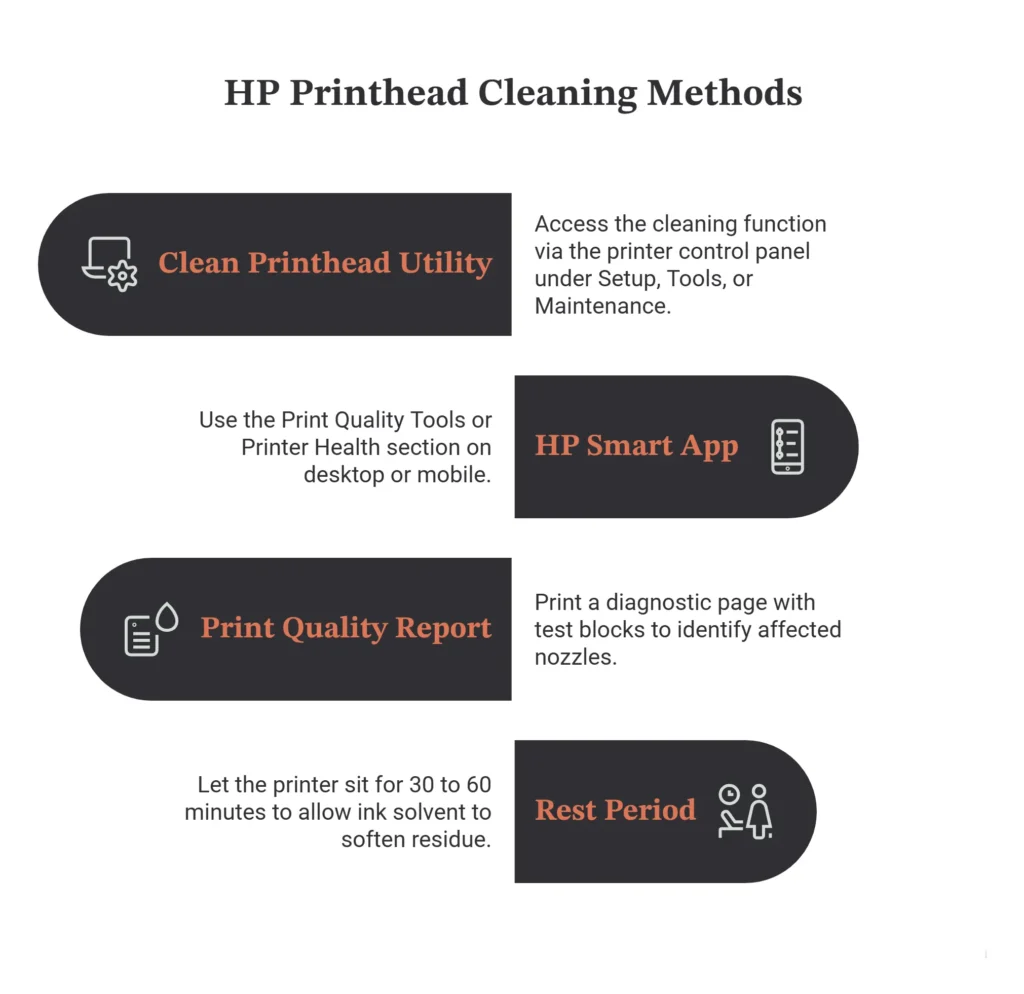
Every HP inkjet printer has a printhead cleaning function you can access without a computer. On the printer’s control panel, look under Setup, Tools, or Maintenance. The label varies by model. Run the cleaning cycle, then print a test page. If the output is still streaky, run it again up to two or three times. Keep in mind this process uses ink, so don’t run it endlessly.
Use the HP Smart App
On newer HP models, the HP Smart app (available for desktop and mobile) includes a Print Quality Tools or Printer Health section that runs the same cleaning and alignment routines as the control panel. If you’re more comfortable on your phone or laptop than navigating the printer’s menu, this is the easier way.
Run a Print Quality Report
HP printers can print a diagnostic page showing test blocks for each color. Gaps or streaks in those blocks show you which nozzles are affected, so you can see whether cleaning cycles are working or not.
Let It Rest Between Cleanings
If cleaning cycles are slowly improving the output but haven’t fully cleared the clog, run one more cycle and let the printer sit for 30 to 60 minutes. The small amount of solvent in the ink can soften hardened residue. Many stubborn HP nozzle clogs clear completely with this hack.
How to Manually Clean a Stubborn HP Printhead?
If the HP clean printhead utility and a proper rest cycle haven’t fixed it, it’s time to step into the manual HP print head cleaning. Work through these steps in order to fix printer clogging.
First, Identify Your Printhead Type
If the printhead is built into the cartridge (common on many home HP models), you’ll clean the cartridge’s nozzle plate directly. If it’s a separate removable printhead unit, you can take it out and soak it. If it’s a fixed, non-removable printhead, do not try to force it out. Only go for built-in cleaning cycles and a very light external wipe only.
Clean the Cartridge or Printhead Nozzles
For cartridge-integrated printheads, dampen a lint-free cloth or a folded coffee filter with warm distilled water. Do not use tap water, not hot water, just warm distilled water. Gently blot the copper-colored nozzle plate at the bottom of the cartridge. Don’t scrub. You’ll see ink transferring onto the cloth as the clog loosens. Repeat with a fresh section of cloth until no more ink transfers.
Only use distilled water for printhead cleaning. Tap water contains minerals that cause further clogging. Never use rubbing alcohol directly on the nozzle plate of an integrated cartridge. Never force a fixed printhead out of the printer. |
Soak a Removable Printhead
For separate removable HP printheads, rest the nozzle side in a shallow tray of warm distilled water, about a quarter inch deep, for a few hours. If the clogs persist, a professional printhead cleaning solution works even better. The soak dissolves hardened, dried ink that HP printhead cleaning cycles simply can’t reach.
Dry Completely Before Reinstalling
After cleaning or soaking, blot the printhead or cartridge gently with a dry lint-free cloth and let it air dry for at least an hour before putting it back in the printer. Installing it while still wet can cause electrical issues.
Reinstall and Run One More Cleaning Cycle
Put everything back, run the HP cleaning utility once more, and print a test page. This final cycle uses the freshly cleared nozzles with fresh ink and confirms the clean HP cartridge nozzles or printhead is working properly again.
Get Your HP Printer Printing Clean Again
Most HP printhead clogs clear completely with the right method, and a proper diagnostic saves you from wasting money on ink cycles, replacement parts, or a new printer you don’t need. QuickLaptopRepairs offers a free diagnostic, no work without your approval, and the right repair vs replace advice every time.
Still fighting a clogged HP printhead? Book a FREE diagnostic with Quick Laptop Repairs, and we’ll get it printing clean again.
Quick Laptop Repairs fixes HP printers and devices across Las Vegas, including Summerlin, Henderson, North Las Vegas, Centennial Hills, Spring Valley, Enterprise, Green Valley, Silverado Ranch, and the surrounding area.