
Your laptop feels slower than it used to. The battery barely makes it through a morning. Or your hard disk just broke, and you’ve spent the last ten minutes staring at a $900 to $1,500 new laptop price tag wondering if there’s a smarter way out. The honest question isn’t ‘should I buy a new laptop?’ It’s ‘will fixing or upgrading this one fix the problem, or am I just delaying the fated upgrade?’
The answer depends on three things. What’s actually wrong with your current model, whether the hardware can be upgraded at all, and how the total cost of upgrades compares to what a new laptop would cost.
This guide walks through all three. You’ll get specific price ranges for the most common upgrades for RAM, SSD, battery, screen, and keyboard. Get a laptop upgrade vs. new laptop cost comparison by age, and an honest decision framework so you can stop guessing and make the call with factual data.
How to Know If Your Laptop Is Worth Upgrading?
Before comparing upgrade costs to new laptop prices, it’s worth spending five minutes diagnosing what’s causing the problem. Upgrading the wrong component is the most common reason people upgrade a laptop and still feel disappointed. The issue was never RAM or storage in the first place. Here’s how to work through it:
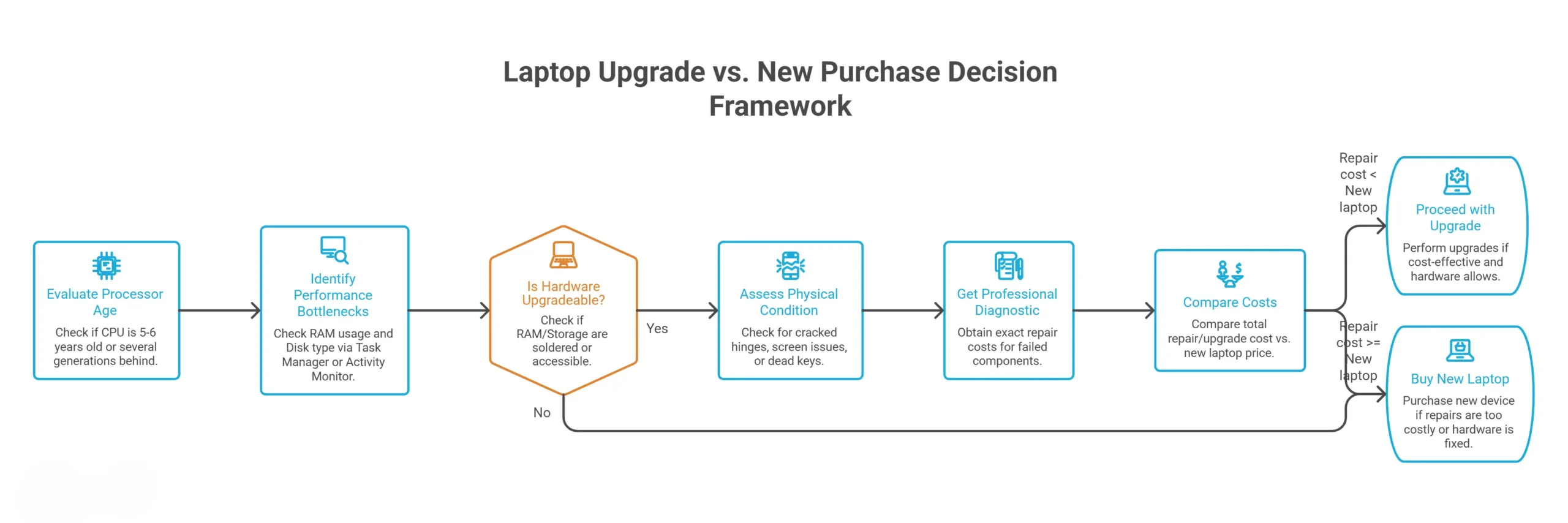
Step 1: Evaluate Your Laptop’s Processor Before Upgrade
The processor is the backbone of how much any other upgrade can help. RAM, storage, and batteries are all replaceable on most laptops. The CPU and the motherboard aren’t soldered on modern laptops.
If your processor is five to six years old or several generations behind current hardware, a RAM or SSD upgrade will make a huge difference in specific tasks. But it won’t clear up the central performance gap created by an outdated CPU. For instance, a 2018 laptop with a new SSD will boot faster and feel more responsive. But it just won’t perform like a 2026 model.
Step 2: Check What’s Causing the Slow Performance
Most laptop slowdowns have one of two causes. Insufficient RAM or an aging spinning hard drive. Slow boot times, lag when switching between applications, and sudden slow PC performance when multiple browser tabs are open are always storage or memory problems, not signs of a dying laptop.
- On Windows, open Task Manager (Ctrl + Shift + Esc), click the Performance tab, and check RAM usage at idle and under normal use. If it’s consistently above 80%, more memory will help.
- For storage, the same Performance tab shows whether your drive is an HDD or SSD under the Disk panel, or look for ‘Disk’ under Device Manager.
- On a Mac, open Activity Monitor (Applications → Utilities), click the Memory tab to check memory pressure, and look under the Disk tab for storage activity.
A dying battery is a battery problem, not a ‘buy a new laptop’ problem. If the device works well on AC power but dies in 45 minutes unplugged, a battery replacement starting from $49.00 can immediately solve it.
Step 3: Review Your Laptop’s Upgrade Compatibility
This is the step most people skip, and it’s the one that determines whether the upgrade conversation is even relevant for your laptop or not. Many modern ultra-thin laptops, MacBooks, and premium ultrabooks have RAM and storage soldered directly to the motherboard. On these devices, there are no slots to access and no modules to replace. The hardware is fixed at whatever it shipped with.
Before assuming an upgrade is possible on your specific model, look up the model number. You can check it out on the base of the laptop, usually displayed on a sticker. Search on Google as ‘[model name] RAM upgrade’ or ‘[model name] SSD upgrade.’ Or bring it to your nearest laptop repair shop. The technician will tell you in under two minutes whether your model is upgradeable without charging anything for the information.
Step 4: Consider Age, Condition, and Future Reliability
A cracked hinge, a failing screen, or a keyboard with dead keys changes the upgrade math. A perfect RAM and SSD upgrade won’t fix physical damage. And if the repair costs for those issues stack on top of the upgrade cost, the total can start approaching what a new budget laptop costs.
If you’re not certain what’s wrong or what can be fixed, a professional diagnostic can help you. It identifies exactly which components have failed or degraded and what each fix would cost. Now, you can compare that total against a new laptop’s price tag rather than estimates.
Quick Laptop Repair offers a FREE diagnostic before any work begins, so you know exactly what you’re working with before spending anything.
Which Laptop Upgrades Are Worth It?
Here’s what the most common laptop upgrades cost, what professional laptop experts fix, and whether the investment makes sense. Prices include parts and professional labor, which matters because an incorrectly installed SSD or a RAM module seated wrong causes more problems than it solves.
Upgrading RAM
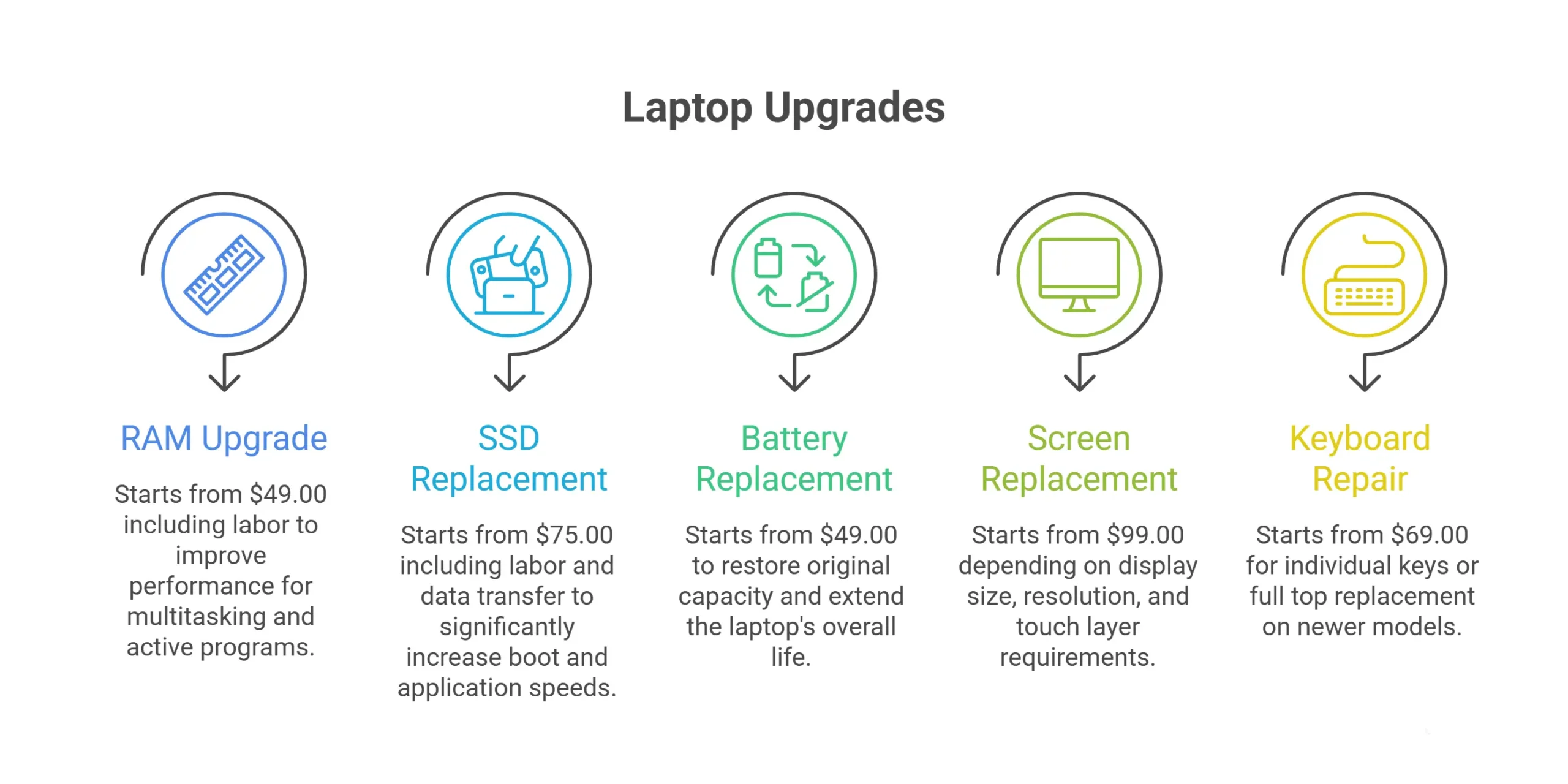
A RAM upgrade cost starts from $49.00, including labor, depending on the upgrade capacity (8GB to 16GB costs less than 16GB to 32GB) and your laptop model. It’s one of the highest return upgrades available for everyday performance issues.
RAM is what the operating system uses to keep active programs running. When it runs out, the system starts using the hard drive as overflow, which is dramatically slower. Anyone currently running 4GB to 8GB of RAM who uses multiple browser tabs simultaneously, runs Office alongside other applications, works with Zoom or Teams, or notices the laptop slowing down over a long work session can benefit from same day, professional laptop RAM upgrade services in Las Vegas.
A laptop RAM upgrade won’t help if the issue is the processor or a mechanical hard drive. But when RAM is the actual problem, the difference is immediate and consistent.
Replacing a Hard Drive for an SSD
Replacing a traditional spinning hard drive with a solid-state drive cost minimum $75.00 including labor and data transfer. Of all the upgrades on this list, this one consistently delivers the best performance upgrades. Boot times can drop from two to three minutes to under twenty seconds. Applications open faster, and file operations speed up that used to stall completely.
If your laptop shipped with a mechanical HDD and you haven’t upgraded it, this is the first thing to do before considering a replacement. An SSD upgrade on a four-year-old laptop with a current-generation processor can make it feel genuinely new for tasks like web browsing, document work, and communication tools.
Data transfer is part of the process. Expert laptop repair shops transfer your files, applications, and operating system to the new drive. Nothing is lost when the upgrade is done properly.
A+ Quality Battery Replacement
Battery degradation is a normal part of a laptop’s lifecycle. After two to four years of regular charging, most laptop batteries retain only 60 to 80 percent of their original capacity. That’s why a laptop that used to last all day now dies by noon.
Battery replacement prices in Las Vegas start from $49.00 depending on the model. The prices are less for modular batteries on older laptops, and more expensive for adhesive-mounted internal batteries on slim designs. It’s one of the most cost effective ways to extend a laptop’s overall life.
If the laptop needs to be used away from a power outlet, a battery replacement immediately fixes the issue and costs a fraction of a new device.
Repairing vs. Replacing the Screen or Keyboard
Screen replacement budget starts at $99.00 depending on display size, resolution, and whether the model uses a touch layer. Keyboard repair or individual key replacement costs range from $69.00 to more. Newer models come with built-in keyboards.
Experts replace the whole top, including the keyboard. These models are more than older models. Price depends on the manufacturing year and model. Keyboards generally come with a 1-year warranty.
If the device works well and the screen or keyboard is the only thing wrong, repair almost always beats replacement. The math gets less clear on a laptop that’s five or more years old, already showing other wear, or running on an outdated processor. At that point, repair cost plus the laptop’s existing limitations start to push toward the cost of a modern model.
How to Know When an Upgrade Is No Longer Worth It?
If the total cost of the upgrades you’re considering approaches 50 to 60 percent of what a comparable new laptop would cost, and the CPU is already outdated. Replacement usually wins. Not because upgrading is wrong, but because the remaining device isn’t worth the investment.
For example: a $500 laptop that needs a $150 screen repair plus a $99 battery replacement is spending $250 on a laptop worth less than that. An $800 laptop three years old needing a $150 SSD upgrade and a $100 battery replacement is spending $250 to restore a device that would cost $700 to $1,000 to replace, clearly worth it.
The age and condition of the laptop, combined with what the CPU can deliver after the upgrade, determines which side of that line you’re on.
Laptop Age | Upgrade Cost | New Laptop Cost |
Under 3 years | $100 – $250 | $700 – $1,200 |
3 – 5 years | $150 – $400 | $500 – $1,000 |
5+ years | $200 – $500+ | $400 – $800 (entry-level) |
Ready to Find Out If Upgrading Is Worth It?
You now have a framework for the decision, not just advice to ‘weigh the pros and cons.’ You know what to check before spending money, which upgrades move the needle and which don’t. The only thing left is getting a real repair price evaluation for your specific model.
Quick Laptop Repair’s team has CompTIA A+ certified technicians with same-day availability who will give you a quick, detailed answer. No work starts without your approval. Every upgrade is backed by a 90-day warranty, and the diagnostic that tells you whether upgrading makes sense costs nothing.
Frequently Asked Questions About Upgrading vs. Replacing a Laptop
Yes. Quick Laptop Repair provides a free diagnostic and a fixed, affordable quote before any work begins. The diagnostic confirms which components will benefit from an upgrade, identifies anything the hardware doesn't support, and gives you a specific cost to compare directly against a new laptop's price tag before you've committed anything.