
No More Printer Paper Jams & Feed Problems - Fix Your Printer Today!
Are you sick of printer paper jam issues that occur every day? Although paper jam seems like a nightmare! And you can fix it in no time. Still, if it happens all the time. The team is not just frustrated; we all complain about wasting resources with poor productivity as well.
If you are struggling with everyday paper jams. Maybe it’s time to take your printer for a checkup. And ask the nearest printer repair shop to fix it ASAP. This blog covers how you can fix paper feed and printer paper jam problems with a quick five-step process. It’s time to see why these problems occur. And how can you prevent them with quick printer troubleshooting steps for smooth use in the future!
Why Printer Paper Jams & Feed Problems Happen All the Time?
Thinking, where can I get my printer fixed in Las Vegas? Before jumping into the steps to fix poor printer paper jams or paper feed issues, you must know why they occur. This way, you save your money and time on future printer repairs. Plus, you can effectively maintain your office projects, shop prints, or other printing tasks! Let’s have a look at why HP/Canon or other major brands complain about paper feed and jams!
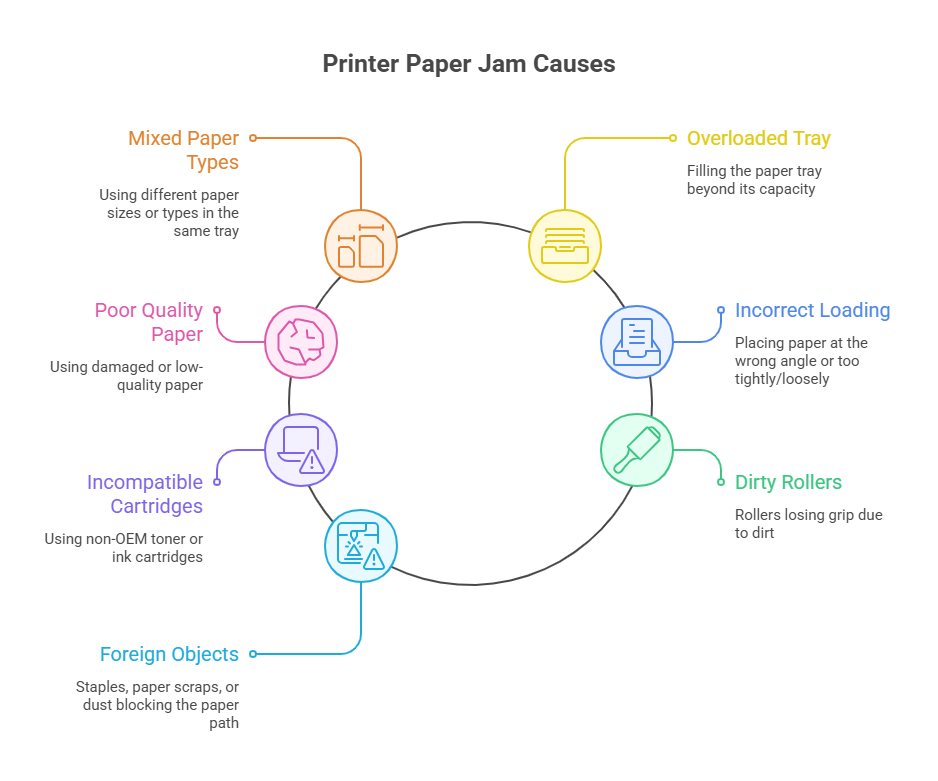
1. Different Paper Size/Type Within the Same Tray
No matter what brand of printer you own, any office printer effectively handles different kinds of paper according to the tray size. Imagine if you have accidentally put different types of papers in the same tray. Ultimately, the paper feed system confuses, leading to paper jams.
Make sure you only put one type of paper in a tray for a single use. Do not mess with your printer’s paper detecting system. Or, if you want to use any other paper type, it’s better to switch to a separate tray. You can even manually load the papers again for a smooth printer operation.
2. Paper Tray Overloading
Overloading is another reason for your printer’s complaints of excessive pressure, ultimately ending up with extreme paper jams. Due to paper tray overloading, the printer does not take out the sheets with each command. Thus, experts suggest filling the paper according to the recommended capacity of your printer brand.
3. Poor Quality Paper
Never ever try to overload or overwork your printer by forcing paper inside it. Remember, always sweep your paper pile before placing it inside the tray, so none of the papers stick around!
Sometimes, we use low-quality or damaged paper as the prints are not very essential. These damaged, low-quality papers either crumple or curl, or jam dust inside the printer rollers.
4. Incorrect Paper Loading
Are you a beginner using the printer for the very first time? Do you know how to load paper inside the HP printer? Or you accidentally put the paper at the wrong angle inside the printer. Every problem leads to paper jams! A minor, mistaken, improper paper loading could jam your printer and bring you a lot of mess eventually.
Thus, make sure to align your papers according to the guide. Do not put the paper either too tightly or too loosely, so the paper stack can easily move with each print command. Recheck if you have placed the papers inside the tray so they don’t go too far.
5. Poor-quality Toner/Ink Cartridges
Sometimes, if your specific printer paper, toner, or ink cartridge is not available in the market. We usually buy some other toner or ink cartridges from different brands. Known OEM toner or cartridges result in improper paper feeding, bringing long-term paper jam problems. Always use your printer manufacturer’s recommended ink cartridges and toners to get the best from your printer printing system.
6. Dirty Printer Rollers
Dirty printer rollers lose grip over time. As they help the people to easily flow throughout the machine if loose, they can cause printer jams.
7. Old or Damaged Printer Parts
Finally, if a foreign object is inside your Epson/Canon/Brother printer. From staples to paper scraps or dust, it will ultimately block the paper path, leading to printer paper jams.
Step-by-Step Solutions to Fix Printer Paper Jams!
Printer complaining of paper jams? No worries! Follow this quick, step-by-step, simple guide to fix printer jam issues in Las Vegas now!
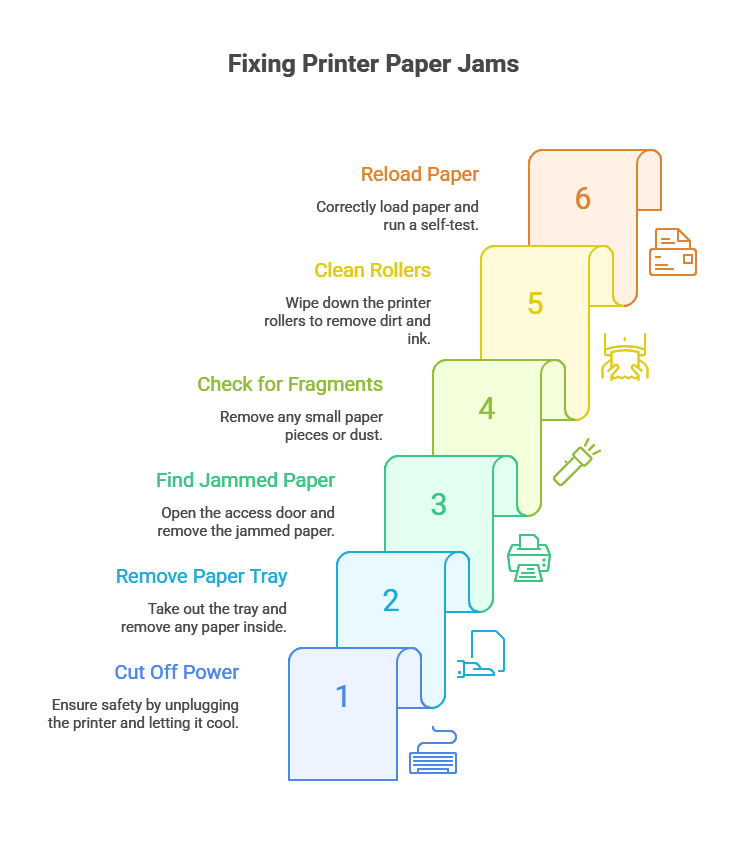
Step 1: Cut Off the Printer Power
Before you clear the paper jam! Make sure to turn off your printer and always unplug it from the power source. Wait for at least a few minutes to cool down all the internal components.
Step 2: Remove the Paper Tray
Now pull your printer paper tray out. Closely evaluate to see if there is any paper inside that tray. Remove it. Be careful so you do not mistakenly tear any papers, as there will be paper fragments inside the printer.
Step 3: Find and Remove the Jammed Paper
Now, open your printer’s access door or panel. See, is there any jam paper inside? If not, check your printer paper rollers too. With both hands, the rollers are pushed out in the direction of the paper feed to avoid any printer damage.
Step 4: Check for Small Paper Fragments
Remove all the paper fragments? The work is not done yet! Sometimes, small paper pieces or dust might be in the printer. Use a flashlight or tweezers, or a soft brush to remove dirt or paper particles.
Step 5: Clean the Printer Rollers
If your printer has dirty rollers, clean them with a soft cloth or cleaning tool. Wipe away all the dust or ink inside the rollers. Are your printer rollers overaged? Contact the nearest printer repair technician to replace them ASAP.
Step 6: Reload the Paper Correctly
Separate any wrinkled or damaged paper from the kit and fan all the papers before loading them inside the printer. Keep an eye on the paper guide rails so the paper does not exceed the maximum suggested paper tray capacity. Now, reconnect your printer to the power source. Turn it on. And always run a self-test to see if the problem is no longer there or persists.
How to Avoid Printer Jams for A Healthy Paper Printer Life?
Preventing paper jams is easier than fixing them. Las Vegas printer repair experts habitually share pro tips for printer maintenance with all their customers. Follow these simple tips to keep your printer running smoothly.
Choose Quality Paper
Buy paper that your printer manufacturer suggests. Cheap paper causes problems. The papers bend, leaves dust, or sheets stick together. Keep paper stored somewhere dry and flat so it doesn’t get damp or wrinkled.
Load Paper Correctly
Never stuff too many sheets into the tray at once. Make sure the paper sits straight and even. Slide the side guides until they touch the paper edges gently without bending the sheets.
Regular Cleaning Matters
Clean the rubber rollers and inside paths where paper travels. Remove dust, dirt, and tiny paper pieces regularly. A small vacuum or air blower works great for cleaning inside your printer.
Check Printer Health
Look at the rubber rollers that grab paper. When they look worn or smooth, replace them. Older printers or ones used heavily may need new parts occasionally.
Fix Your Printers Always Jamming in 2026
Paper jams happen often, but they’re usually easy to fix. Most problems disappear when you load sheets properly, keep rollers clean, and choose quality paper. These basic steps get your printer working again quickly. However, if jams keep happening despite your efforts, the issue is somewhere hiding in depth.
Old rubber rollers wear out over time, especially in heavily used printers. Aging printers develop problems that simple cleaning won’t solve. When basic fixes stop working, evaluate the internal parts carefully. You might need new rollers or other components. Don’t hesitate to contact your printer manufacturer’s support team for expert help. High-volume office copiers jam differently than desktop printers they have multiple paper paths and duplex assemblies. For commercial equipment, our copier repair team in Las Vegas provides the specialized service these machines require.
This guide covers the most common printer paper jams with quick-fix solutions. Following these troubleshooting methods handles the majority of printer paper feed and jam issues you’ll face. If stuck, it’s always best to look on Google for where can I get my printer fixed in Las Vegas.