
Not sure what motherboard is hiding inside your PC? You are not the only one unaware of it! Whether you’re planning an upgrade, troubleshooting a problem, or just curious, finding this info is easier than you think.
You don’t need to crack open your case or dig through old receipts. In just a few clicks or one quick command, you can find your motherboard’s make, model, and specs. This guide walks you through every method, step by step, so you get the answer fast and move on.
Why You Need to Know Your Motherboard?
Your motherboard is the backbone of your PC. Everything, your CPU, RAM, GPU, and storage, plugs into it. Knowing your motherboard model matters when you want to:
- Upgrade your RAM or processor
- Install the right drivers
- Check motherboard compatibility with new parts
- Troubleshoot crashes or performance issues
- Find BIOS updates
Skip this step, and you risk buying parts that don’t fit or worse, damaging your system.
Quick Summary: How to Check what motherboard I have?
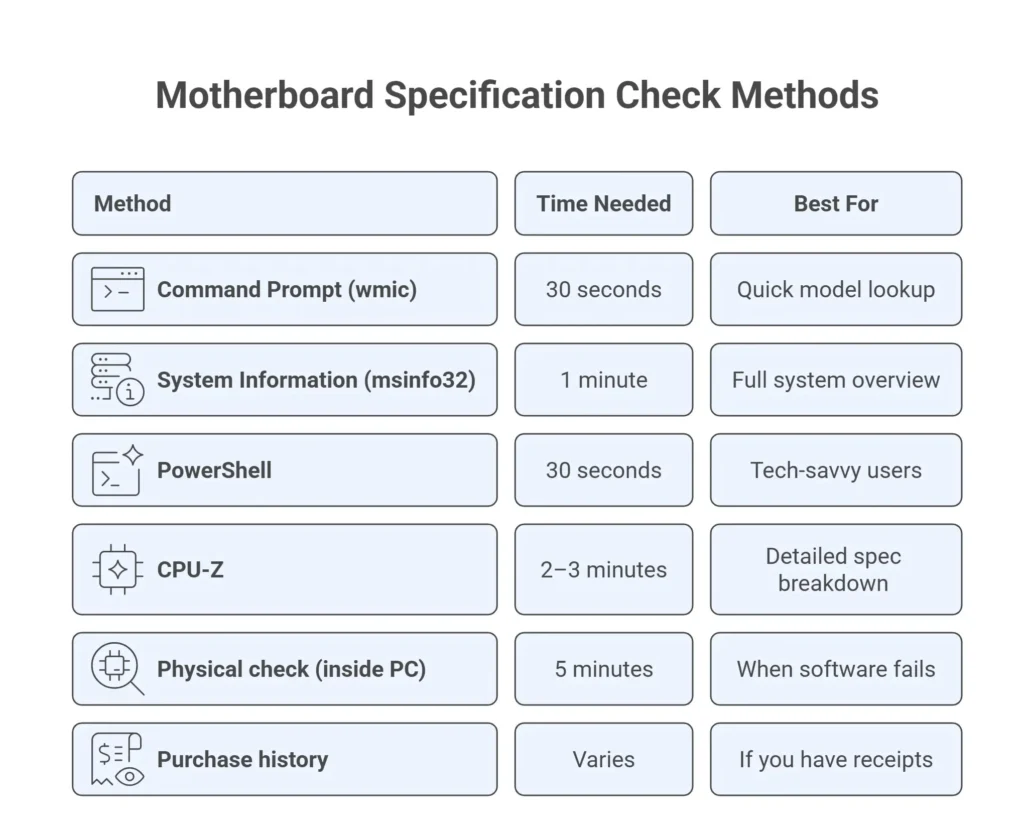
| Method | Time Needed | Best For |
| Command Prompt (wmic) | 30 seconds | Quick model lookup |
| System Information (msinfo32) | 1 minute | Full system overview |
| PowerShell | 30 seconds | Tech-savvy users |
| CPU-Z | 2–3 minutes | Detailed spec breakdown |
| Physical check (inside PC) | 5 minutes | When software fails |
| Purchase history | Varies | If you have receipts |
Method 1: Use the Command Prompt (Fastest Way)
This is the quickest way to check motherboard specs on any Windows PC. No third-party software needed.
- Press Windows + R on your keyboard
- Type cmd and hit Enter
- In the Command Prompt window, type this command and press Enter:
wmic baseboard get product, manufacturer, version, serialnumber
You’ll instantly see your motherboard manufacturer, model name, version, and serial number. Done. This works on Windows 10 and Windows 11. It takes under 30 seconds.
Method 2: Use System Information
Prefer a point-and-click approach? Windows has a built-in tool for this.
- Press Windows + R
- Type msinfo32 and press Enter
- Look for “BaseBoard Manufacturer” and “BaseBoard Product” in the list
This gives you your motherboard brand and exact model number. It also shows you system details like your OS version and processor, which are useful if you’re doing a full PC specs check.
Method 3: How to Check your Motherboard via PowerShell
PowerShell is another fast option if you’re comfortable with the terminal. Here’s how you can check your PC motherboard specs:
- Right-click the Start menu
- Select Windows PowerShell (or Terminal)
- Type this and press Enter:
Get-WmiObject -Class Win32_BaseBoard | Select-Object Manufacturer, Product, SerialNumber
You’ll get a clean output with your question: ‘How to check your motherboard in seconds.’
Method 4: Use Free Third Party Tools
Third party tools like CPU-Z is a trusted, lightweight tools used by PC builders worldwide. It gives you deep details about your motherboard chipset, BIOS version, and slot information. Download CPU-Z from the official site. It’s free. Install and open the app. Then, click the “Mainboard” tab.
You’ll find:
- Manufacturer
- Model
- Chipset
- Southbridge
- BIOS brand and version
This is especially useful if you want to check motherboard specs beyond just the model name, like whether your board supports PCIe 4.0 or DDR5 RAM.
Method 5: Check Device Manager
Device Manager won’t always show your full motherboard model, but it can reveal your chipset and some hardware details.
Steps:
- Right-click the Start button
- Select Device Manager
- Expand “System devices.”
Look for entries like “Intel HM570 Chipset” or similar. This tells you your chipset family, which helps narrow down motherboard compatibility when shopping for upgrades.
Method 6: Look It Up Physically (Inside Your PC)
If software methods aren’t working, go directly to the source. Motherboard troubleshooting often reveals that the GPU, not the board , is the real culprit behind display issues. Our GPU repair service in Las Vegas can isolate and fix graphics card problems without replacing the entire motherboard.
How to find the model printed on the board?
- Power down your PC and unplug it
- Remove the side panel of your case
- Look for large text printed directly on the motherboard, usually near the RAM slots or CPU socket
Common spots:
- Between the RAM slots and PCIe slot
- Near the 24-pin power connector
- Along the bottom edge of the board
You’ll typically see something like “ASUS ROG STRIX B550-F” or “MSI MAG Z790 TOMAHAWK.” Write it down and look it up online for full specs.
Method 7: Check Your Purchase History or Manual
Did you build your PC yourself? Or buy it from a retailer? Check these places:
- Amazon or Newegg order history — search for your order
- Original packaging or invoice — the box will have the full model name
- Manufacturer’s paperwork — the motherboard manual lists every spec
If you bought a pre-built PC from brands like Dell, HP, or Lenovo, the model name might be proprietary. Use the System Information method or CPU-Z instead for those systems.
If your system isn’t displaying motherboard details or fails to boot, it could be a hardware fault. In such cases, check our Motherboard Repair Services in Las Vegas for a complete free diagnosis and fix.
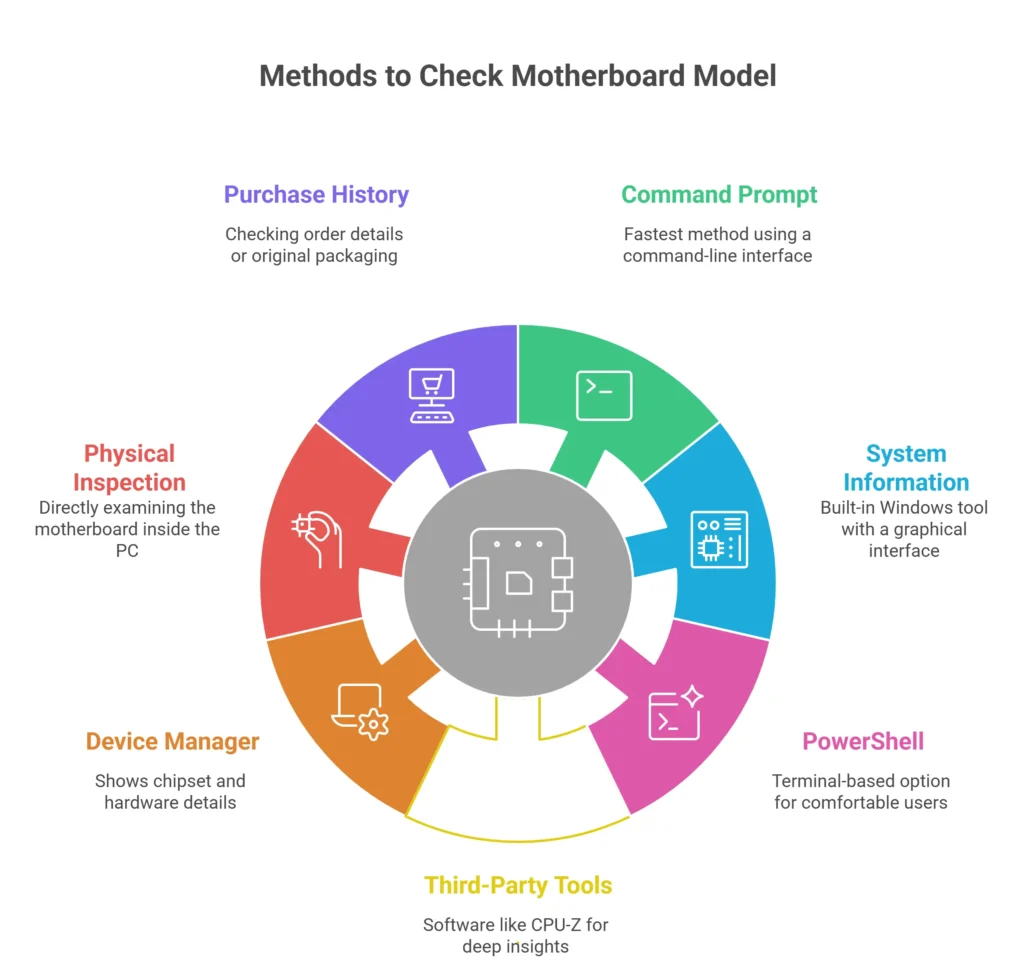
How to Read Your Motherboard Specs?
Once you know your model, visit the manufacturer’s website, like ASUS, MSI, Gigabyte, ASRock, or whichever brand you have and search for your model. Here’s what to look at when reviewing motherboard specs:
- CPU Socket Type
This tells you which processors are compatible. Common ones include LGA1700 (Intel 12th/13th/14th Gen) and AM5 (AMD Ryzen 7000 series).
- RAM Support
Check the max RAM speed (like DDR4-3200 or DDR5-5600) and the total capacity your board supports.
- PCIe Slots
Important if you’re adding a GPU or NVMe SSD. PCIe 4.0 and 5.0 offer faster speeds than older versions.
- VRM and Power Delivery
Matters if you’re overclocking. A stronger VRM means more stable power to your CPU.
- Form Factor
ATX, Micro-ATX, or Mini-ITX. This determines what PC cases your board will fit in.
Frequently Asked Questions
How to Check what motherboard I have without opening my PC?
Yes. All three software methods, Command Prompt, System Information, and CPU-Z, let you find motherboard model without touching a screwdriver.
What if the system command prompt shows blank results?
Some OEM systems (like pre-built Dell or HP computers) restrict WMI data. Try CPU-Z or the msinfo32 method instead.
How do I check motherboard specs on a laptop?
The same methods work. Type msinfo32 in the Run dialog, or use CPU-Z. Laptops usually show the system model instead of the motherboard brand, which is enough to find compatible upgrades on the manufacturer's site.
Is it safe to download CPU-Z?
Yes. CPU-Z by CPUID is a well-known, safe tool. Always download it from the official CPUID website to avoid third-party bundles.
Final Thoughts
Knowing your motherboard model is step one for almost any PC upgrade or repair. The good news? You don’t need to be a tech expert to figure it out . A 30-second command in the Command Prompt is usually all it takes. If you want deeper details like BIOS version or chipset, CPU-Z has you covered. And when all else fails, pop open the case and read the board itself. Before attempting any motherboard repair yourself, back up your data. If the board failure has already made your drives inaccessible, our data recovery service in Las Vegas can retrieve files from even severely damaged systems.
Once you know your model, you can confidently shop for compatible RAM, CPUs, or SSDs and avoid the frustration of returns and mismatched parts.