
According to a study by Lenovo, gaming laptops can reach internal temperatures of up to 100°C under heavy load, a level at which most CPUs begin thermal choking, directly impacting your in-game performance.
If your laptop shuts down mid-game, runs slow, or feels like a stovetop, your cooling system is likely failing. Don’t panic! You don’t always need to buy a new laptop. There are quick, affordable ways to upgrade or fix your laptop’s cooling system. From simple cleaning maintenance to internal hardware fixes, this guide walks you through every option, step by step, so you can game longer and cooler.
4 Quick Ways to Fix Laptop Overheating Right Now!
Before jumping to fixes, always try to know first what’s causing the heat. Dust buildup in vents and fans blocks airflow and traps heat inside. Sometimes, dried-out thermal paste on the CPU and GPU reduces heat transfer efficiency.
People, without checking out the game specs and their PC compatibility, download heavy games. Their system settings push components to their limits, generating more heat. If you love gaming on a bed or couch, it blocks the intake vents.
Usually, outdated drivers force hardware to work harder than it needs to. Once you know the root cause, picking the right laptop cooling solution becomes much easier.
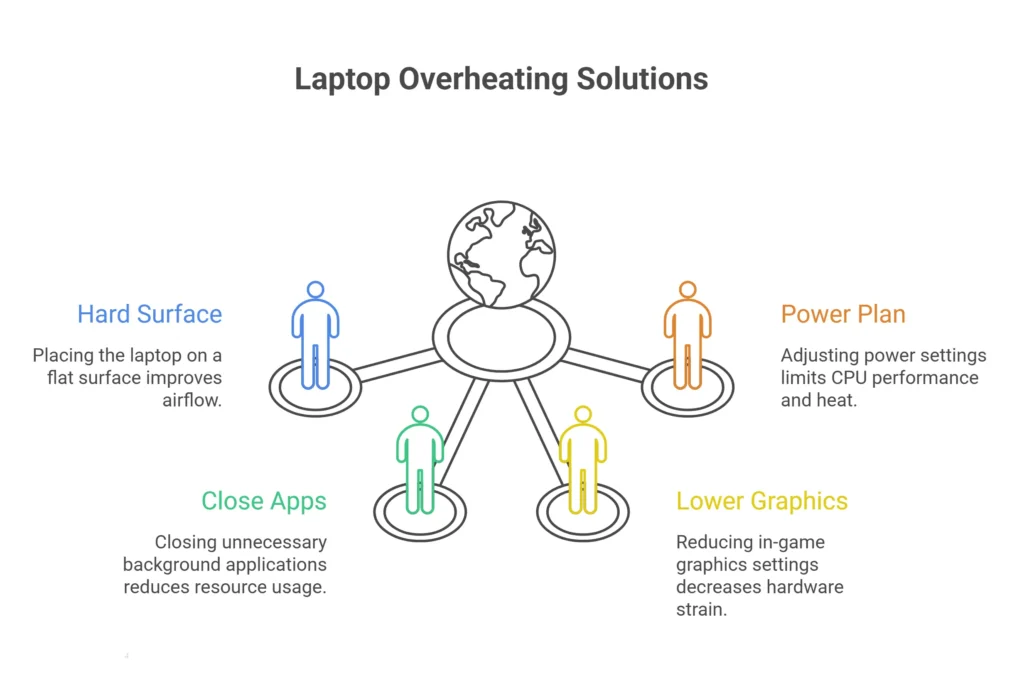
1. Place Your Laptop on a Hard, Flat Surface
This is the simplest fix and one of the most effective. Your gaming laptop’s cooling system pulls cool air in from the bottom and pushes hot air out through the sides or back. Soft surfaces like beds and couches block those intake vents completely.
Always game on a desk or table. Leave at least six inches of space around the vents. This alone can drop temperatures noticeably.
2. Close Background Apps
Open your Task Manager (Ctrl + Shift + Esc). You’ll likely find several apps running in the background. Browsers, updaters, and streaming apps are all eating up CPU and GPU resources and generating extra heat. Close anything you don’t need. Less load = less heat. It’s that simple.
3. Lower Your In-Game Graphics Settings
Running games on ultra settings is the fastest way to push your hardware into thermal overdrive. Try lowering:
- Resolution (drop from 4K to 1080p if needed)
- Texture quality
- Anti-aliasing and shadows
You might lose a little visual detail, but your frame rates will stay stable, and your laptop cooling performance will improve significantly.
4. Adjust Your Power Plan
Switch from “Best Performance” to “Balanced” mode in your Windows power settings. This limits how aggressively your CPU runs, which directly reduces heat output. You can also lower your CPU power limit to around 75% for an immediate drop in temperatures without a huge performance hit.
3 External Upgrades for Better Laptop Cooling
Before opening up your laptop or messing with software, try external upgrades. These hardware upgrades work with your existing system to improve airflow and heat dissipation. From powered cooling pads to simple ergonomic stands, these tools provide an instant drop in temperatures during intense gaming sessions.
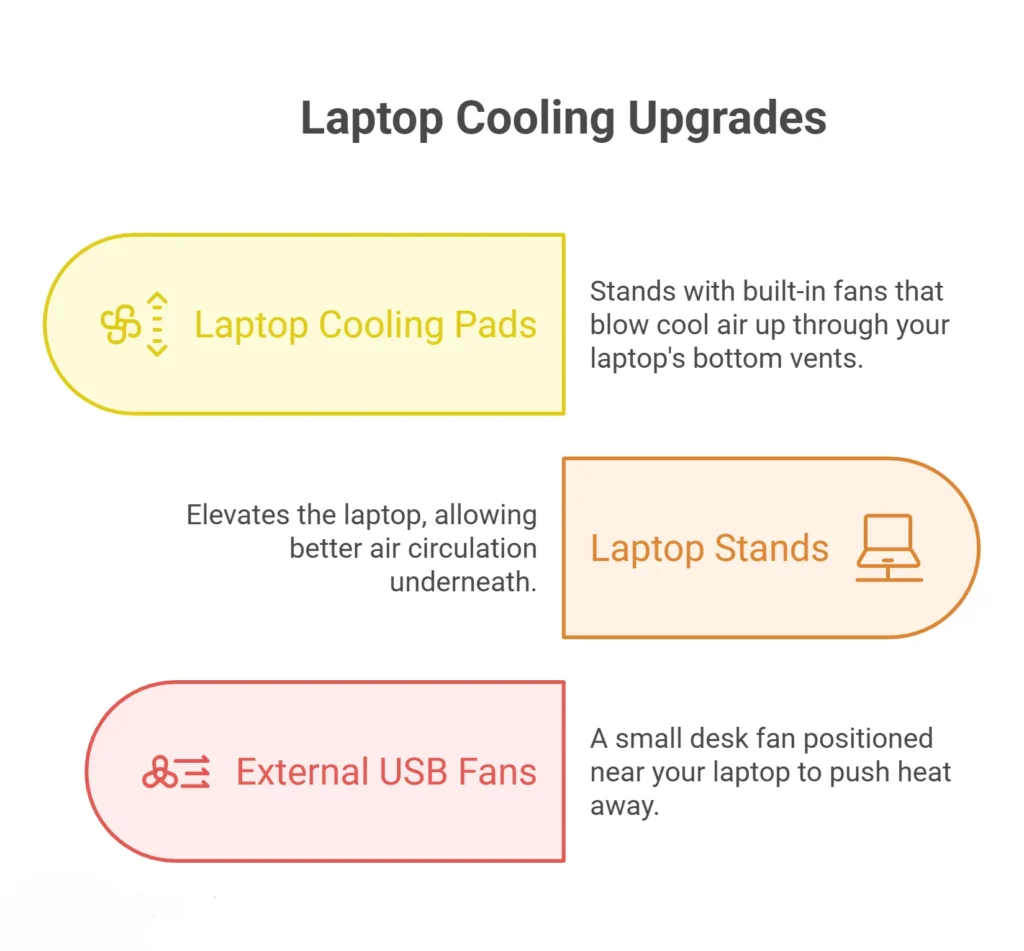
Laptop Cooling Pads
A gaming laptop cooling pad is one of the best investments you can make. These are stands with built-in fans that blow cool air up through your laptop’s bottom vents, improving overall airflow and lowering temperatures, especially during long sessions. Laptop cooling pads perform well in warm environments where ambient temperature makes cooling harder. Look for pads with:
- Multiple fan speeds
- Adjustable height settings
- USB-powered operation (no extra cables needed)
Laptop Stands
Even a simple stand without fans helps by elevating the laptop and allowing better air circulation underneath. If you already use an external keyboard and mouse, a stand is an easy, affordable upgrade to your laptop thermal management setup.
External USB Fans
A small desk fan positioned near your laptop can also help push heat away from the device. It’s not a permanent fix, but it’s useful in a pinch.
Fix Cooling System with Regular Laptop Maintenance
Dried or degraded thermal paste can increase CPU temperatures by 15°C to 30°C. It is one of the single biggest contributors to gaming laptop overheating after dust buildup. These options require opening up your laptop. If you’re not comfortable doing that, take it to a certified laptop computer repair shop. But if you’re handy with a screwdriver, these fixes can reduce heat.
1. Clean the Internal Fans and Vents
Over time, dust accumulates inside your laptop and coats the fans and heatsinks. This is one of the most common causes of gaming laptop overheating. Habitually clean your laptop internally every 4 to 6 months, especially if you game frequently. Here’s how to clean it safely:
- Power off your laptop completely
- Use a can of compressed air to blow dust out of the vents
- If you open the laptop, use a soft brush to clean the fan blades
- Never use a vacuum. It can create static that damages components
2. Reapply Thermal Paste
Thermal paste sits between your CPU/GPU and the heatsink. It transfers heat from the processor into the cooling system. Over time, usually every 2 to 4 years, it dries out and stops working effectively. Replacing it is one of the highest-impact fixes for a hot laptop. Fresh, high-quality thermal paste can drop your CPU and GPU temperatures by 10°C to 20°C in some cases.
Thermal paste replacement is an intermediate-level fix. If you’ve never done it before, watch a tutorial specific to your laptop model or have a laptop repair technician do it for you.
3. Upgrade the Internal Cooling Fans
Some gaming laptops allow you to replace the stock fans with higher-performance ones. Better fans move more air at the same noise level, which means more heat gets pushed out. This is a more advanced upgrade, but it’s worth it if your laptop runs hot even after cleaning and repasting. When shopping for replacement fans, check:
- Compatibility with your specific laptop model
- Airflow rating (CFM — cubic feet per minute)
- Noise level (measured in dB)
4 Software Tricks for Smart Laptop Cooling System
Not all cooling solutions require a screwdriver or a new purchase. Sometimes, the best fixes are hidden in your operating system and graphics drivers. Software settings play a huge role in gaming laptop heat management.
Software updates can reduce heat output by optimizing how your hardware uses power and processing resources. These smart tricks, ranging from custom fan curves to undervolting, help you achieve lower temperatures without spending a single dollar.
Use Custom Fan Profiles
Many gaming laptops come with manufacturer software like ASUS Armoury Crate, MSI Dragon Center, or Lenovo Vantage that lets you control fan behavior. Switch to “Performance” or “Turbo” mode to ramp up fan speeds before they’re needed. This keeps temperatures more stable during intense sessions.
Try Undervolting
Undervolting means reducing the voltage your CPU or GPU uses. Less voltage = less heat, often with no drop in performance.
Tools like ThrottleStop (for Intel) or Ryzen Master (for AMD) make this process easy. A modest undervolt of –50 to –100 mV can lower temperatures noticeably. Always stress test after undervolting to make sure your system stays stable.
Keep Drivers and Firmware Updated
Outdated graphics drivers can cause your GPU to run inefficiently and generate extra heat. Check NVIDIA or AMD’s website regularly for the latest drivers. Windows and BIOS/firmware updates also often include thermal management fixes that help your laptop cooling system run more efficiently.
Monitor Your Temperatures in Real Time
Tools like HWMonitor and Core Temp let you track your CPU and GPU temps during gaming. Ideally, you want to stay below 85°C to 90°C. If you’re hitting higher numbers consistently, it’s a sign that your cooling system needs immediate help.
When to Visit Your Nearest Professional Laptop Repair Shop for Quick Help?
Some issues go beyond what you can fix at home. Consider taking your laptop to a repair shop if the temperatures stay above 95°C even after cleaning and repasting. Heard any grinding or rattling fan noises? Or your system overheats severely or shuts down during light tasks. Look for the best laptop repair shop near me and schedule a visit ASAP to avoid unnecessarily expensive repair bills for your device.
A professional laptop repair technician can diagnose deeper issues like a failing fan motor, a cracked heatsink, or a blocked heat pipe and fix them without risking damage to your components.
Final Thoughts
A strong gaming laptop cooling system ensures smooth, consistent performance with no lag, no overheating, and zero hardware failure. The fixes range from free, like changing your power plan, to an affordable cooling pad to technical help like repasting and fan upgrades. Start with the easiest options and work your way up based on how hot your laptop is running.
Most overheating problems are quick and easy to fix. With the right laptop cooling upgrades and a little regular maintenance, your gaming laptop can run cool, fast, and last for years.