
Your smart bulb was working fine last week. Now it shows up as “unreachable” in the app. The security camera is offline again. The smart plug needs re-pairing for the third time this month, and your Google Nest just dropped off the network mid-conversation. Smart home devices disconnecting is one of the most common and frustrating problems people run into after setup. The devices worked. And then they didn’t.
This guide covers the real reasons behind smart home WiFi connection problems. From band mismatches, weak signal, router overload, interference, to outdated firmware, along with the fixes you can try today. Let’s get started.
Why Smart Home Devices Keep Disconnecting From WiFi
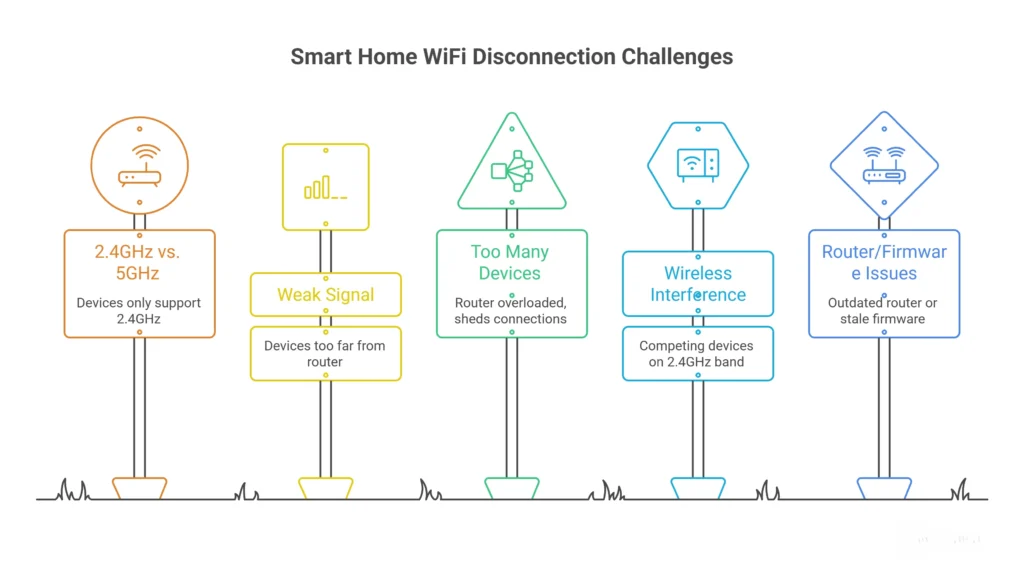
Before trying any fix, the first step is always to evaluate what problem you are actually dealing with! Here are the five most common causes that keep disconnecting your WiFi.
The 2.4GHz vs. 5GHz Band Problem
Most smart home devices like bulbs, plugs, thermostats, and cameras only support the 2.4GHz band, not 5GHz. Many modern routers broadcast both bands under a single network name, a feature called “band steering.” When band steering is active, the router may push a device onto 5GHz, which the smart device cannot use, and the connection drops.
Weak Signal or Too Far From the Router
A weak WiFi signal causes repeated drops, and smart devices often live in the worst spots for signal strength. Front doorbells, garage sensors, outdoor cameras, and bedrooms at the far end of the house. Walls, floors, and distance all chip away at range. A device that sits right on the edge of coverage will connect and disconnect constantly as the signal fades in and out.
Too Many Devices on the Router
A modern home can easily have thirty or more connected devices. Older and budget routers have specific limits on how many simultaneous connections they handle well, and once overloaded, they start shedding connections. Smart devices, which tend to be low priority and low bandwidth, are usually the first to get bumped. If your network feels fine on phones and laptops but smart devices keep dropping, an overloaded router may be the reason.
Wireless Interference
Microwaves, baby monitors, cordless phones, and neighboring WiFi networks all compete on the 2.4GHz band. In apartments and densely populated areas, that band gets genuinely crowded. Smart home devices that communicate at lower power than phones suffer the most.
Router or Firmware Issues
An outdated router, stale firmware, or a device that simply needs a restart can cause intermittent disconnections across the whole home. If many different devices are dropping, not just the smart ones, the router itself is often the problem.
How to Stop Your Smart Devices From Disconnecting?
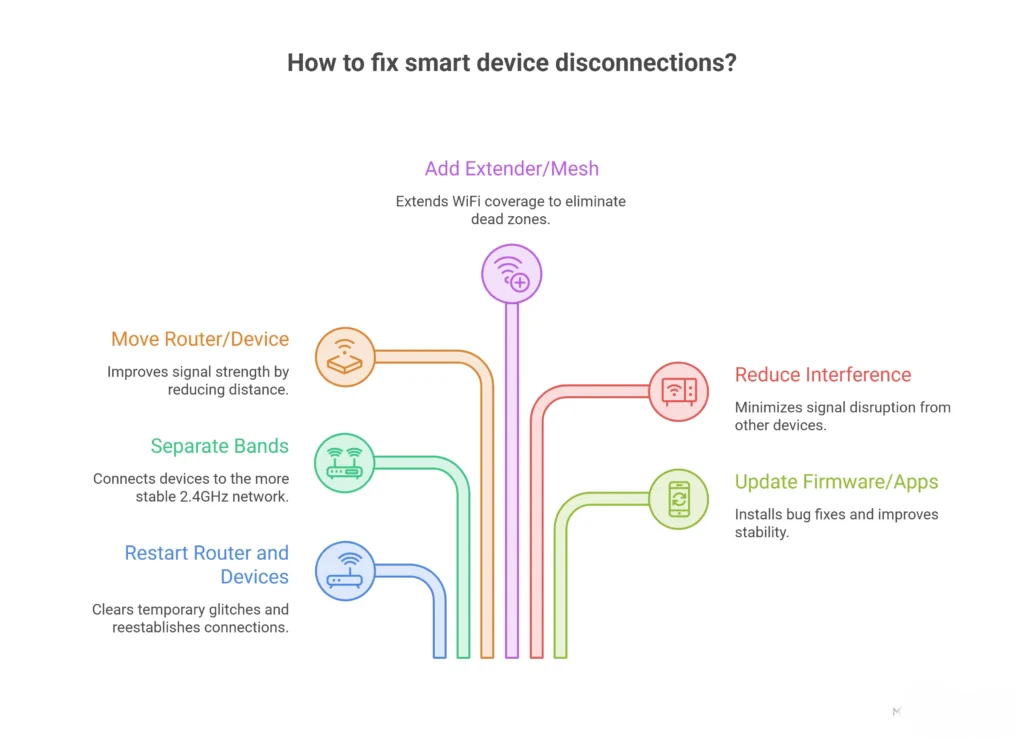
If devices drop after restarting, fixing the band, improving the signal, and updating firmware can fix the issue. Sometimes, a failing or underpowered router, an internet service problem from the provider, or a fault in the device itself causes persistent disconnections that basic fixes won’t resolve.
1. Restart Your Router and Devices
Unplug the router for 30 to 60 seconds, plug it back in, and wait for it to fully reconnect before restarting the smart devices. This clears temporary glitches in the router’s connection table and reestablishes clean links with each device. It genuinely works more often than it should, and it’s always the right first step before anything else.
2. Separate the Bands and Connect to 2.4GHz
In your router’s settings, give the 2.4GHz and 5GHz bands separate network names. For example, “Homenet” for 2.4GHz and “Homenet_5G” for 5GHz. Then connect smart devices specifically to the 2.4GHz network.
Alternatively, temporarily disable 5GHz during device setup so the device joins the right band automatically. Settings vary by router brand; search your router model plus “split bands” or “disable band steering” for step-by-step guidance.
3. Move the Router or the Device Closer
Place the router in a central, elevated spot away from walls, metal appliances, and the floor. For devices that keep disconnecting in far parts of the home, moving them a few feet closer to the router sometimes fixes the problem. It only takes two minutes, and your WiFi problem is no longer there.
4. Add a WiFi Extender or Mesh System
For devices that are genuinely too far from the router, a WiFi extender or a mesh WiFi system is the best solution. A WiFi extender for a smart home rebroadcasts the signal from a closer point, filling in the dead zones where devices drop. A mesh system replaces the single router with multiple nodes that cover the whole home seamlessly.
5. Reduce Interference
Keep the router away from microwaves, cordless phones, and baby monitors. In congested areas, log in to the router settings and manually change the WiFi channel for the 2.4GHz band. Channels 1, 6, and 11 are the non-overlapping ones to try. This reduces competition with neighboring networks in dense apartments or office buildings.
6. Update Router Firmware and Device Apps
Check your router manufacturer’s website or app for pending firmware updates and install them. Then update the smart home device apps on your phone. A router firmware update often includes bug fixes that directly address connection stability.
Get Your Smart Home Network Sorted by Quick Laptop Repairs
Quick Laptop Repairs handles home networking and device setup alongside device repair. The smart home setup service includes diagnosing why devices keep dropping, optimizing router settings and band configuration, setting up or recommending extenders or mesh systems for full coverage, and getting devices reliably connected and staying connected.
Quick Laptop Repairs networking helps determine whether your current router can handle your home’s needs or needs upgrading. Band settings, channel congestion, and coverage planning are genuinely fiddly to get right. Getting them sorted once saves the endless cycle of repairing and reconnecting.
Tired of constantly reconnecting your smart devices? Book a Setup or Diagnostic with Quick Laptop Repairs and get the network stable for years to come.